
System Guides, Navigation Guides, and Resource Guides in ESS Portals

Disclaimer:
This text is an educational discussion of general concepts used in online portals for employees of government organizations. It is not affiliated with any official ess portal, workforce portal, or government entity and does not contain professional, financial, or legal advice.

Introduction: Three Complementary Types of Guides

In a complex environment of internal systems, employees often need help understanding where to start, where to go next, and how to interpret what they see. A well-designed explanatory portal can address this need by providing three complementary types of guides: the system guide, the navigation guide, and the resource guide.

Each of these guide types plays a distinct role. Together, they form a framework that supports understanding without performing actions on behalf of the user.

The System Guide: Explaining Components

A system guide focuses on the components that make up the digital environment. It introduces each major internal service, describes its purpose, and outlines how it fits into the overall structure. The emphasis is on relationships and context rather than instructions.

For example, the guide might describe a documentation system as the place where official texts are stored, an internal communication system as the channel for announcements, and a scheduling tool as a shared reference for planning. In the context of an ess portal, these descriptions allow employees to recognize systems they encounter, even if names and interfaces differ between departments.

The Navigation Guide: Explaining Paths

While a system guide explains what exists, a navigation guide explains typical paths between elements. It can show how employees usually move from a landing page to internal services, from general overviews to specific sections of the employee workspace, or from staff workspace areas to departmental information.

In a public-sector environment, this guidance is particularly important, because many portals have evolved over time. The navigation guide can acknowledge that multiple routes exist while still presenting an organized view of common flows, using generic examples instead of prescribing behavior for any specific system.

The Resource Guide: Explaining Content Types

A resource guide focuses on the content itself rather than the tools or paths. It can define categories such as “overview articles,” “reference documents,” “frequently asked questions,” “orientation materials,” and “process descriptions.” For each category, the guide explains the typical level of detail, intended audience, and relationship to other categories.

Within an ess portal designed for explanation, the resource guide helps employees choose which type of material to consult first. For example, they might start with a short overview article before reading a longer reference document or use FAQs to clarify common misunderstandings.

Integrating the Three Guides in a Single Portal

These three guides are most effective when they are integrated into one coherent information access environment. The portal might provide a section where the system guide describes major tools, another section where the navigation guide outlines common routes, and a third section where the resource guide lists categories of material.

Links between these sections reinforce the idea that tools, paths, and content types are all part of the same environment. For instance, a page about a particular internal service might include links to navigation patterns where it appears, as well as resource categories where its documentation is stored.

Supporting the Employee Workspace and Staff Workspace

When combined, system, navigation, and resource guides support both the employee workspace and the staff workspace. For individual employees, the guides clarify which systems they are likely to encounter and how to approach them in a structured way. For teams, the guides offer a shared vocabulary for discussing internal services and workplace tools.

This shared understanding helps reduce confusion, especially in large organizations where terminology can vary between units. By using neutral descriptions and focusing on structure, the portal supports internal alignment without enforcing any particular workflow.

Conclusion: A Framework for Clarity in ESS Portals

In summary, an explanatory ess portal can enhance clarity by offering distinct but interconnected perspectives on the digital environment. A system guide explains components, a navigation guide explains paths, and a resource guide explains content types. Together, they help employees interpret complex work systems in a structured way.

Disclaimer:
This article describes general concepts for organizing information in employee-focused portals. It does not depict any specific platform, does not provide operational instructions, and should not be treated as an official statement or policy.
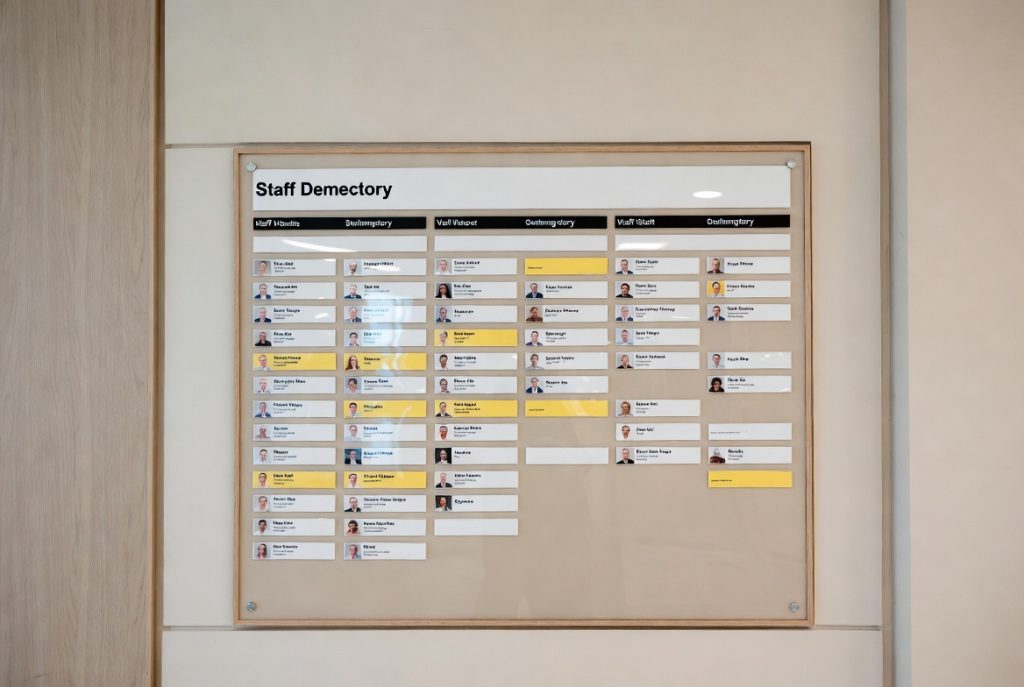

Workplace Tools and Staff Workspace in Government Information Portals

Disclaimer:
This article is an independent educational overview of concepts used in online systems for government employees. It is not connected to any particular ess portal or workforce platform and does not offer operational, financial, or legal advice.

Introduction: Tools as Part of a Larger Structure

Public employees often encounter workplace tools in the form of calendars, shared folders, reporting screens, and communication interfaces. Taken in isolation, each tool can appear complex. In a well-designed ess portal that focuses on explanation, these tools are presented in context, as part of a broader staff workspace.

Rather than describing every button, the portal explains relationships: which tools are typically used together, how internal services are grouped, and which areas of work each category of tools supports.

Defining Staff Workspace and Employee Workspace

The staff workspace can be described as the shared dimension of digital work life, where teams coordinate tasks and share information. It may include shared document areas, group discussion spaces, and cross-department information boards.

In contrast, the employee workspace can be presented as the individual view: pages oriented around the tasks, reference materials, and notifications that are most relevant to one person’s role. An educational article can explain that both workspaces exist within the same general environment but serve different purposes.

Workplace Tools as Building Blocks

Workplace tools can be treated as building blocks within these workspaces. A simple system guide might categorize them into groups: communication tools, document viewing tools, planning tools, and reference tools. Each group can be described using neutral language that emphasizes purpose instead of procedure.

For instance, communication tools may be introduced as instruments that support information access between departments, rather than as products to be used in a particular way. Planning tools can be explained as mechanisms for structuring timelines and responsibilities, without specifying any actions that could be sensitive.

Information Access and Transparency

A good information portal explains not only what tools exist but also why they are visible to certain users. It can describe general governance principles such as data segmentation, role-based visibility, and the separation of reference information from more restricted content.

By laying out these principles, the portal helps employees understand the limits and possibilities of their information access without requiring them to navigate complex technical policies. This transparency supports trust and reduces the need for informal interpretations.

Navigation Guide for Complex Environments

In many government settings, there are multiple sub-portals, dashboards, and specialized applications. A navigation guide can offer high-level cues on how these environments are typically organized. It might explain that there is often a main landing area, from which employees move into staff workspace sections, resource pages, and internal services modules.

Such a guide does not prescribe paths for individual users; instead, it highlights typical patterns, which readers can adapt to their own situation. This approach is especially useful for new employees who are still becoming familiar with the structure of the organization.

Resource Guide for Everyday Reference

A resource guide complements navigation information by listing types of resources rather than locations. For example, it can define categories like “general information pages,” “reference handbooks,” “FAQ collections,” or “orientation materials.” Each category description can include a brief explanation of how staff might use it in a neutral, non-directive way.

By distinguishing between location-oriented guides and content-oriented guides, the portal gives employees multiple ways to understand their digital environment.

Conclusion: Supporting Understanding of Digital Workspaces

When a government information portal frames workplace tools, staff workspace, and employee workspace through careful explanation, it supports understanding rather than attempting to manage behavior. Employees gain a clearer sense of structure, which makes it easier to engage with the systems they already use.

Disclaimer:
This article provides a conceptual overview of workplace tools and digital workspaces in public employee portals. It does not describe any real system configuration and is not intended as operational guidance or policy.

How a Missouri ESS Portal–Style Site Can Explain Internal Services

Disclaimer:
This text is for informational and educational purposes only. It uses terms such as missouri ess portal and ess purely as descriptive labels and does not represent, emulate, or connect to any official system. It does not provide operational, legal, or financial advice.

Introduction: From Operational Platform to Explanatory Portal

When people mention a missouri ess portal or similar system, they often refer to an online space where public employees interact with internal applications. However, there is also value in having a separate explanatory environment that focuses entirely on structure and understanding. Such a site does not offer login functionality or access to records; instead, it offers neutral information about how internal services are typically arranged.

This kind of educational portal can help employees make sense of a complex landscape of applications, dashboards, and work systems. It can clarify terminology, outline common workflows in general terms, and show how different modules support the employee workspace.

Describing Internal Services Without Operating Them

The central role of an explanatory portal is to describe internal services without becoming one. For example, a page might outline the categories commonly found in a workforce environment—documentation platforms, communication channels, learning tools, and administrative interfaces. Each description remains high-level and avoids step-by-step operational details.

In doing so, the site helps readers understand which types of tasks belong to which family of tools, without inviting them to perform actions. Explanations are written in neutral language and focus on context rather than specific configurations.

Presenting the Employee Workspace as a Model

The employee workspace can be presented as a conceptual model that groups tasks into zones: information review, collaboration, scheduling, and reference consultation. The portal can present diagrams and narratives explaining how these zones might appear in practice and which workplace tools commonly support them.

For instance, one article could describe how staff workspace areas are used to share documents within teams, while another article could focus on the personal side of an employee workspace, where users review general information related to their role. The objective is to help people visualize the division between collective and individual views of work.

Information Access in a Government Context

Information access in a public organization is shaped by rules, responsibilities, and the principle of appropriate use. The portal can explain, in general terms, how content is typically categorized by sensitivity and how different groups of employees may have different levels of access to internal knowledge.

Rather than describing technical mechanisms, the site can outline the conceptual hierarchy: public information, internal reference materials, department-specific content, and role-specific data. This helps employees understand why certain documents are visible in some contexts but not in others, without exposing any real configuration.

System Guide Articles: Explaining Without Instructing

System guide articles can focus on orientation rather than procedure. For example, a guide might describe the typical sections visible after logging into an internal system: a homepage, a navigation menu, an information area, and links to internal services. The text can mention that specific labels vary between organizations, but the structural logic remains similar.

By separating explanation from execution, the portal avoids presenting itself as an operating manual. It simply provides employees with conceptual maps they can use when approaching real applications.

Navigation Guide and Resource Guide as Supporting Tools

A navigation guide can introduce common patterns for moving through complex sites: starting from general overviews, narrowing down to department areas, and then reaching specific tools or materials. The description can remain abstract, focusing on principles such as grouping, labeling, and cross-linking.

A resource guide can complement this by listing typical resource types: general information pages, consolidated FAQs, staff workspace features, and document libraries. By explaining how these elements usually interact, the portal gives employees a vocabulary for discussing their digital environment with colleagues and support teams.

Conclusion: Clarifying, Not Controlling

An explanatory portal modeled around the idea of a missouri ess portal does not control any underlying system. Its role is to clarify how structures might look, what internal services commonly include, and how employees can conceptually understand their workspace. In public organizations with many systems, this clarity is valuable.

Disclaimer:
This article describes a hypothetical explanatory portal for public employees. It does not depict any real government platform, does not provide technical or organizational instructions, and should not be treated as an official source of guidance.

Understanding an ESS Portal as an Information Layer for Public Employees

Disclaimer:
This article is for general informational and educational purposes only. It provides a neutral overview of common online systems used by employees of government organizations. It is not affiliated with any official ess portal, missouri ess portal, or other real platform and does not provide legal, financial, or HR advice.

Introduction: A Portal for Orientation, Not Operations

In many public organizations, staff members interact with multiple online systems during the workday. Without a clear framework, it can be difficult to understand how these systems relate to each other or where to look for specific information. An ess portal can serve as an orientation layer above these tools, helping employees understand the logic behind internal platforms without performing any sensitive operations.

Instead of acting as a transactional environment, this type of portal focuses on explanation and structure. It describes how internal services are grouped, how different modules support daily tasks, and how the overall environment is organized. When designed as an educational resource, the portal becomes a neutral system guide rather than a place where actions are executed.

The Portal as an Information Map

One useful way to imagine an ess portal is as an information map. Rather than presenting only links, it offers descriptive context. A page about internal services can explain what categories exist, such as document repositories, communication tools, scheduling environments, or reporting interfaces. Another page might provide a navigation guide that shows how these elements connect, which pathways are typical, and where supporting explanations can be found.

For government staff, this mapping is especially valuable because public organizations often use several generations of technology at the same time. A well-structured portal gives users a central place to review descriptions before entering any specific system. In this way, it reduces friction and uncertainty.

Employee Workspace and Staff Workspace as Concepts

Employee workspace and staff workspace are not necessarily separate applications. They can be understood as conceptual zones within the portal’s structure. An employee workspace area might describe the typical tasks associated with a role, the main systems involved, and the set of workplace tools that support daily routines. A staff workspace section could focus more on collaboration, shared documents, and internal communication patterns.

By explaining these zones through structured texts and diagrams, the portal helps staff interpret what they see when they log in to different internal platforms. The goal is not to manage accounts but to support understanding.

Workplace Tools and Internal Services

Workplace tools often include calendars, request forms, document viewers, and communication interfaces. In many organizations, these tools are spread across several internal services, each serving a precise but limited function. The educational portal can present a resource guide that outlines the purpose of each tool in neutral language.

For example, one page may list common workplace tools along with short descriptions: a system for general information access, another for document storage, another for internal messages. The emphasis is on clarity: which tasks each tool supports, where it is typically used, and how it fits within the broader environment of work systems.

Information Access and System Guides

A key responsibility of this portal is helping employees understand information access. This does not mean granting permissions or changing settings. Instead, it explains the principles behind access, such as the difference between reference materials, shared workspaces, and restricted datasets.

System guide articles can describe typical user journeys in abstract terms: where employees usually start, which menus they encounter, what kinds of content they can view, and where to find further explanations. These articles act as a bridge between interface elements and the underlying organizational logic.

Navigation Guides and Resource Guides

Navigation guides go beyond listing menus. They can show example paths through different parts of the environment: for instance, moving from a general homepage to a department section, then to a specific collection of documents. Resource guides, in turn, can list categories of materials—policies, instructions, handbooks, reference notes—along with short descriptions of when each category is most relevant.

When navigation guides and resource guides work together, the ess portal becomes a reference layer that helps users orient themselves before interacting with any operational system. This is particularly helpful for new staff members who are still learning how the organization’s digital landscape is arranged.

Conclusion: A Neutral Layer of Explanation

In a public-sector environment, a portal that explains internal systems can significantly reduce confusion and reliance on informal explanations. By focusing on clear descriptions of internal services, employee workspace concepts, workplace tools, and information access patterns, such a portal supports understanding without performing sensitive actions.

Disclaimer:
This article is a general educational overview of how an explanatory ess portal could be structured. It is not an official document, does not describe any real platform in detail, and should not be treated as professional or organizational guidance.